You can generate RDC reports via the RDC Vault/iDocVAULT. There are 3 monthly reports available that generate on the 1st of every month. Below are the steps to generate the reports.
Available Reports
- Transaction Report
- Business Rules Summary
- Enrollment Counts Monthly
Steps to Generate RDC Reports
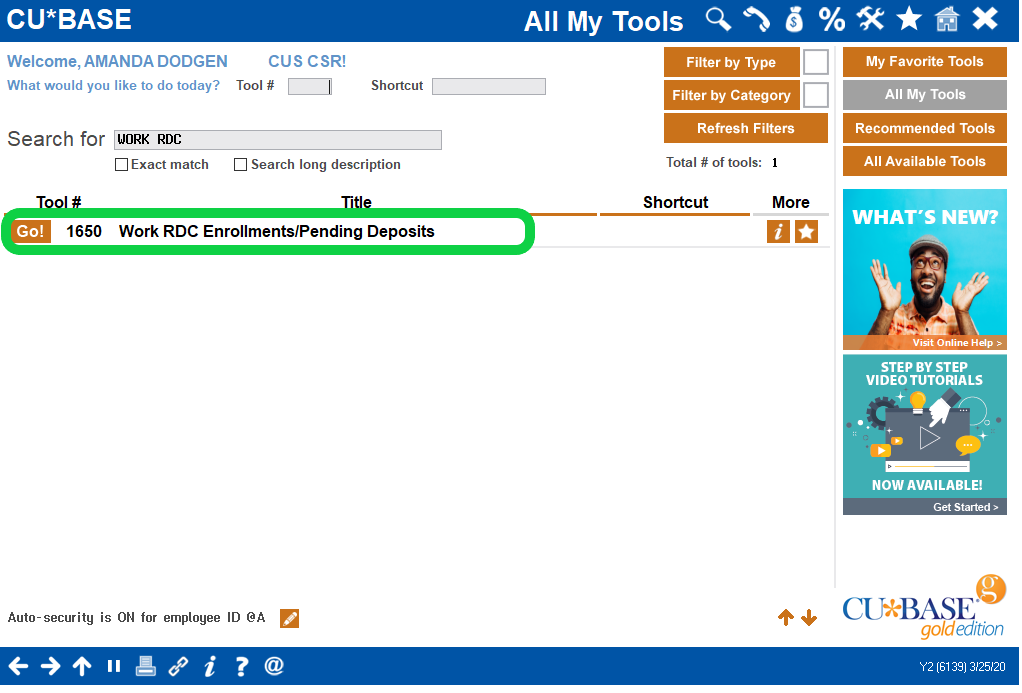
1. Launch Tool # 1650: Work RDC Enrollments/Pending Deposits
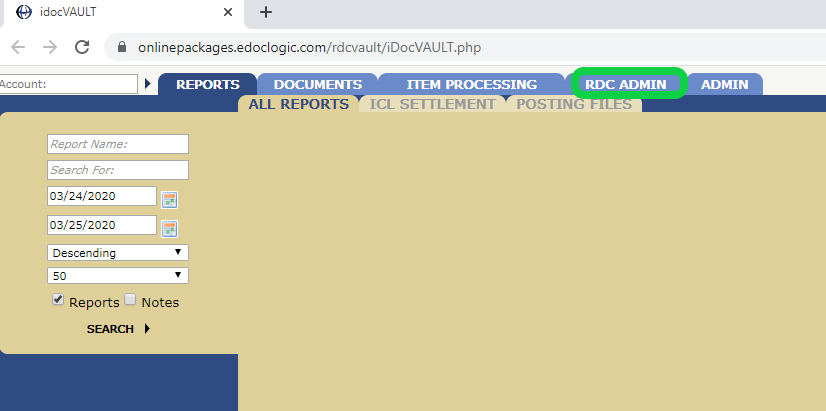
2. In the RDC Vault, select the RDC ADMIN tab
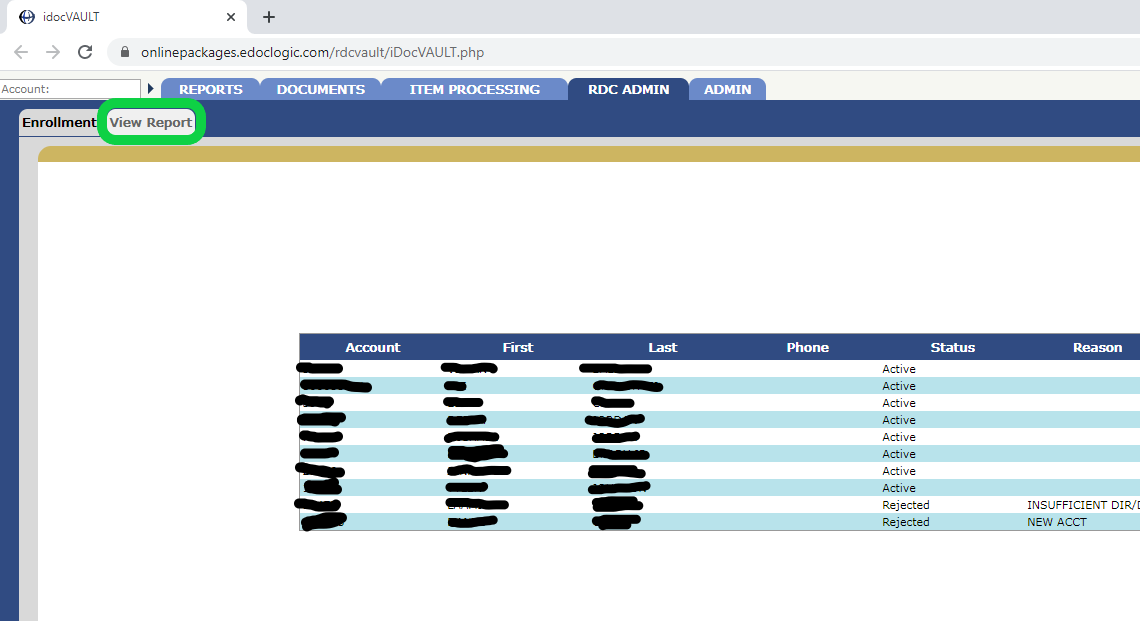
3. From the RDC ADMIN tab, select the View Report tab
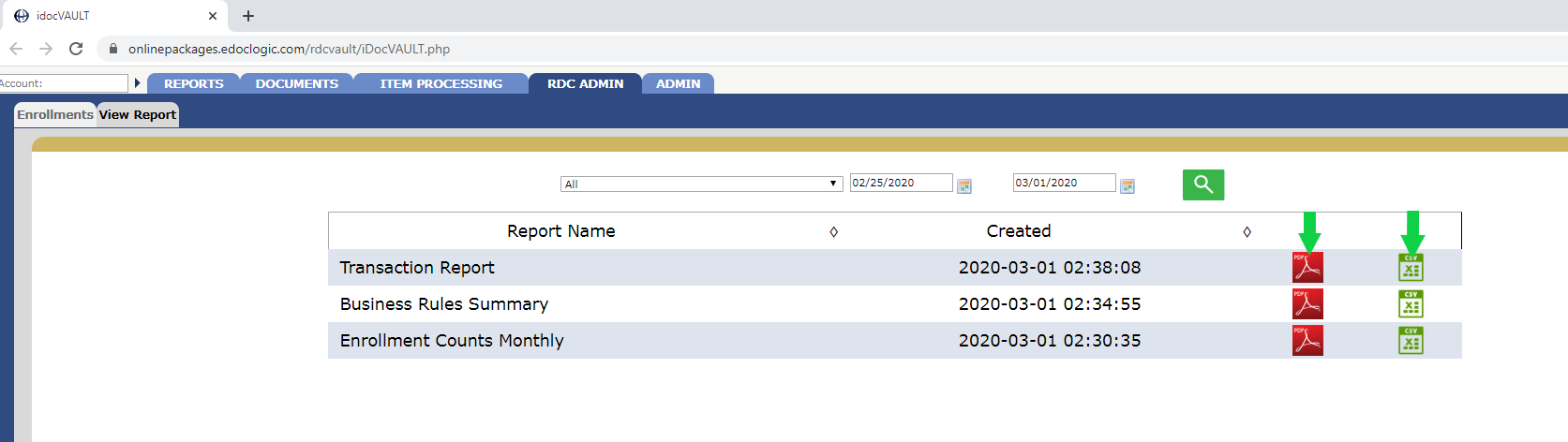
4. In the Report Create On field, use the calendar to enter day 1 (1st) for the most recent month (Example, 03/01/2020 would be most recent since April hasn't generated yet)

5. Once you've entered the date, click the Spyglass icon

6. You will see the three reports generated. Select the PDF or Excel icon next to the desired report to view the results.
Comments
0 comments
Article is closed for comments.